
Do you remember a movie where you were struck by those smooth, clear focus changes? The ones where the background melts away as the focus shifts perfectly to the next subject? What if I told you that you could get that same cinematic look straight from your iPhone?
Since its debut, Cinematic Mode has transformed from a smartphone novelty into a powerful tool for professional mobile filmmaking. Whether you’re shooting on the latest iPhone 18 Pro or optimizing an older device, mastering computational focus is the key to high-end results. This guide explores how to leverage Cinematic Mode and Spatial recording, and how to achieve a film-grade look even on unsupported hardware.
Whether you are an aspiring filmmaker or a content creator looking to level up, we are going to plunge into the world of iPhone videography. We’ll break down exactly what Cinematic Mode can do for your projects and, more importantly, how to get awesome results even if your phone doesn’t natively support the feature.
This guide covers everything you need to know about Cinematic Mode — from basic setup to advanced techniques.
What is Cinematic Mode?
Cinematic Mode is a modern, high-tech video shooting option that some iPhone versions possess. This feature allows the users to make videos with a shallow field of view and automatically switch focus to resemble the professional cameras used in movie production. With Cinematic Mode, your iPhone camera can record videos with a shallow depth of field and add beautiful focus transitions for a cinema-grade look.
If you shoot video on your iPhone, Cinematic Mode gives you professional-looking results without expensive equipment. It also works alongside spatial videos for immersive 3D recording on Pro models.
What Does Cinematic Mode Do?
Cinematic Mode works through computational photography to create a shallow depth of field effect. It enables focus to shift smoothly between subjects as they move within the frame, making your videos look more intentional and professional.
How to Use iPhone Cinematic Mode
To start using Cinematic Mode and learn how to make cinematic videos with iPhone, follow these steps:
- Unlock the Camera app on the compatible iPhone you are using.
- The camera modes can be found at the bottom of the screen; scroll through it until you see the option for “Cinematic.”
- Next, you will see the Cinematic Mode interface, almost identical to the video mode but with extra icons.
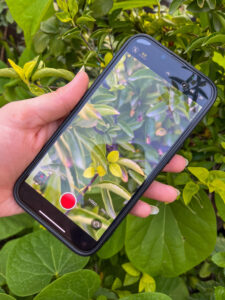
Before recording, familiarize yourself with the various settings and controls:
Depth Control
- Press the Depth Control button, a small f with a number next to the button.
- The use of this slider bar controls the level of depth that is in focus. Here, moving the Zoom control to the left causes background blur, while moving the Zoom control to the right guarantees less blur.
Focal Length
- Press the Telephoto button once it reads “1x”, then press it again to change it to “3x”.
- Press again to switch to Wide.
Exposure and Flash
- Press the exposure button labeled by the sun and move the slider to change the video brightness.
- Push the flash button to switch through, turning it to Auto, On, or Off.
Recording in Cinematic Mode
Focusing Techniques
Cinematic Mode shines in its ability to create smooth, professional-looking focus transitions:
- Tap a person or object on the screen to move focus to it. The focus transition is smooth.
- Press twice on a subject to turn the active Autofocus Point ON, which helps move subjects.
- Tap the screen once and hold your finger on the screen to mark the distance where the focus is to be locked.
Tips for Capturing Cinematic Footage
- Plan your shots: Consider how to apply the focus transitions to tell a story. Want to take it further? Read our Cinematic Mode tips guide.
- Use subtle movements: In the case of the camera, there is no need to make jerky movements; slow and smooth movements add a cinematographic feel.
- Leverage depth: Move the subjects at dissimilar distances with the camera to give the layer of focal visual appeal.
- Be patient: Allow scenes to play out to achieve a realistic look and feel for a particular scene or character.
- Experiment with framing: Like prose writing, try different compositions to determine which is most effective for the text.
Editing Cinematic Mode Videos
Cinematic Mode also allows users to easily adjust focus and depth fields even after exiting the mode, and that is one of the most compelling reasons to suggest using it. This is possible because your iPhone carries focus information in real-time if you set the focus on the object you are recording.
Adjusting Depth of Field
To modify the depth of field in post-production:
- Locate the Cinematic Mode video you recorded by selecting the Photos app.
- Tap “Edit”.
- Click on the Depth Control button, the icon of which is f-stop.
- Please use the slider to set the depth level of the field. Alterations made will be for the whole video.
- To save the changes made, tap the option “Done.”
Modifying Focus Points
You can also change focus points after recording:
- In the edit interface, you’ll see a timeline with yellow dots indicating focus change points.
- Scrub through the video using the timeline.
- Tap on different subjects to change the focus point.
- Double-tap a subject for automatic focus tracking.
- Touch and hold to lock focus at a specific distance.
To remove a focus transition, touch and hold the yellow dot until a delete button appears, then tap it.
Advanced Techniques and Tips
Lighting Considerations
Cinematic Mode needs light to see depth. If you’re in a dark room, even the newest iPhone can struggle to cut out your subject cleanly from the background. For the best results, put a clear light source on your subject’s face. This helps the camera map the scene and keeps the blur from looking messy around the edges.
Composition Strategies
Enhance your cinematic videos with these composition techniques:
- Rule of thirds: Place your subject along one of the grid lines, not dead center.
- Leading lines: Use roads, hallways, or fences to guide the viewer’s eye toward your subject.
- Framing: Use foreground objects like doorways or plants to frame your subject naturally.
- Symmetry: Arrange elements symmetrically in the frame for a clean, balanced composition.
- Negative space: It’s okay to use large areas of negative space to help lead the composition’s focus to your main subject.
Understanding the Technology
Cinematic Mode launched on the iPhone 13 series with the A15 Bionic chip, and its Neural Engine helps process depth information in real time, keeping your subject sharp while blurring the background frame by frame. The chip alone does not decide support. The iPhone 16e, iPhone 17e and iPhone Air have newer chips, and Apple does not list Cinematic Mode for them.
Another advantage of the iPhone’s ultrawide lenses is that they can see motion while recording; thus, they can track entry and exit in the frame or change focus when necessary to emphasize these motions.
Which iPhones Have Cinematic Mode?
For the complete updated compatibility table including iPhone 16e, iPhone 17e and iPhone Air, see our full guide on which iPhones have Cinematic Mode.
Due to the different types of iPhones released in the market, as mentioned above, not all of the iPhones have a cinematic mode, and therefore, specifying the iPhones having the cinematic mode must be done carefully as follows:
Cinematic Mode is supported on multiple iPhone devices. It lets the user record a video with a shallow depth of field and beautiful focus transitions for a cinematic feel. Cinematic Mode launched with iOS 15 on the iPhone 13 series. Keep your iPhone on the latest iOS version for the best results.
Here is a list of iPhones that support Cinematic Mode:
- iPhone Duo (available from October 23, 2026)
- iPhone 18 Pro Max
- iPhone 18 Pro
- iPhone 17 Pro Max
- iPhone 17 Pro
- iPhone 17
- iPhone 16 Pro Max
- iPhone 16 Pro
- iPhone 16 Plus
- iPhone 16
- iPhone 15 Pro Max
- iPhone 15 Pro
- iPhone 15 Plus
- iPhone 15
- iPhone 14 Pro Max
- iPhone 14 Pro
- iPhone 14 Plus
- iPhone 14
- iPhone 13 Pro Max
- iPhone 13 Pro
- iPhone 13
- iPhone 13 Mini
What is the difference between Cinematic Mode and Regular Video Mode?
Cinematic Mode and regular Video mode serve different purposes. Here is how they compare. For a complete side-by-side breakdown, see our Cinematic Mode vs Video Mode comparison guide.
Regular Video Mode
Standard or regular video mode is the traditional way of recording movies, which was adopted when digital cameras for shooting videos emerged. This mode aims to offer real-time videos whereby the exposure is fixed to give a steady frame rate and a correct focus on the scene being recorded.
Expressed technically, the regular video mode often covers standard shoot rates of 24, 30, or 60 frames per second (fps). The focus is constant on the scene while being recorded unless modified, and the depth of field is again a function of the f-number and the focal length of the lenses used. The recorded outcome is usually high-definition, and every object within the scene is well-focused.
The most frequently used video mode in everyday life and work can be attributed to the regular video mode, which applies to home videos, as well as to news reporting and the non-fiction film industry. Therefore, it is perfect for action shots, concerts, stage performances, sports, and anything else that involves quick movement or when there is a need to focus on a couple of subjects.
Some of the benefits of running the schedule in regular video mode are its simplicity, compatibility with different devices and editing programs, and clarity when capturing many subjects in one shot. However, it needs more flexibility to achieve a more ‘cinematic’ or ‘artistic’ view; it cannot create a more complex depth of field and focus that can be done in the other modes.
Cinematic Mode
Cinematic mode is a novel concept introduced to embody film’s aesthetic in digital video recording technology. It is a part of consumer electronics. This mode aims to reproduce the appearance characteristics of old film cameras and offer focused tools to capture more beautiful and emotionally exciting scenes.
Cinematic Mode offers adjusted focus after shooting, with a shallow depth of field and focus on the subject in motion become the main Cinematic Mode parameters. Technically, Cinematic Mode is often based on computational photography and artificial intelligence that scans the scene in real-time, recognizes the subjects, and produces blur in the background, similar to the footage shot on the departments of the top cinematographic cameras.
Cinematic Mode is usually recorded at 24 or 30 fps (iPhone 18 Pro and iPhone 18 Pro Max also offer 60 fps), nearer to actual motion picture shooting. The shallow depth of field effect is made possible by software optimization and multiple camera lenses that allow developers to choose what sections of the photo must be blurred.
This model is perfect for developing artistic content for social platforms, short movies, and video clips. It enables people with no experience in filmmaking to obtain a closer look at a cinema production, even without the use of expensive cinema cameras or, in most cases, professional editing software.
At the same time, Cinematic Mode has the benefits of making the vision of a scene and its emotions more vivid, or, for example, changing focus and depth of field after the capture, and gives videos a more cinematic look, which can help increase the production value of a video. However, it also has its flaws: the subject may lose focus while background details may be blurry; it is not suitable for objects in motion; the actual or digital resolution should be higher, and the storage space and processing power should also be superior.
Critical Differences Between Cinematic Mode and Regular Video Mode
Otherwise, Cinematic Mode and Regular Video Mode are practically the same but differ in their looks, depth of field settings, focusing methods, post-processing options, and matter of files.
- Visual Aesthetics: Cinematic Mode records video that appears to have been shot on a film camera, with a less blurred background than the photo mode. It also gives the work great depth and very effectively leads the spectator’s attention to the focus – the central figure. In turn, Regular video mode implies that the sharpness of the details will be consistent throughout the frame, which may help shoot all the details of a scene but does not look as elaborate as Cinematic Mode.
- Depth of field: These are contrasted remarkably in terms of who can control the depth of field or the plane of focus. The main benefit of the Cinematic Mode is that it can use much less depth of field, even if the device in question has small sensors and lenses. This effect is commonly done using the so called computational photography methods. This provides that the depth of field in regular video mode is dependent on the physical properties of the lens and sensor, which usually means that devices with consumer-level cameras will have a much greater depth of field.
- Focusing Techniques: Cinematic Mode uses intelligent subject tracking, keeping your main subject sharp while blurring the background. Also, depending on the implementation, it is possible to adjust the focus after the video has been shot in Cinematic Mode. Standard video mode typically depends on auto-focusing or manual focus; indeed, no alterations are possible in the focus when using this mode.
- Post-Processing Capabilities: The videos recorded in Cinematic Mode are usually followed by additional parameters that extend the post-processing possibilities, mainly when focusing and creating depth-of-field effects. This means creative decisions can be made or altered after recording the first source. Regularly, the video mode has fewer post-processing capabilities encompassing color correction, stabilization, and basic trimming.
- File Formats and Compatibility: Cinematic Mode can also save depth data and focus info into specific formats and metadata, still, which can still influence compatibility with specific editing applications and playback devices. As for the Regular video mode, it commonly employs basic video formats that most applications and video editing software can easily read.
Creative Applications
Storytelling through Cinematic Mode opens up new possibilities for visual narratives. The ability to guide the viewer’s attention through selective focus and depth of field can enhance emotional impact and create a more immersive viewing experience. This mode is particularly effective for character-driven scenes, product showcases, and artistic expressions where the separation of subject from background is crucial to the narrative.
While professional filmmakers have long had access to similar capabilities through high-end equipment, Cinematic Mode brings these tools to a broader audience. This democratization of cinematic techniques has led to a surge in high-quality, visually striking content across social media platforms and independent film productions.
Industry adoption of Cinematic Mode has been growing, with many content creators and marketers leveraging its capabilities to produce more engaging video content. However, it’s important to note that regular video mode still exists in many professional settings, particularly in news gathering, sports coverage, and situations where capturing clear, comprehensive footage is paramount.
Challenges and Limitations
Although Cinematic Mode has its drawbacks, One must master this mode because it isn’t as simple as pressing a button and getting the effect within the frame. Some cinematography knowledge is needed to achieve that.
The storage and processing load is generally higher for the videos captured in Cinematic Mode since more data is recorded and real-time processing is done. This can affect the battery of portable devices and take up more storage space, especially for raw videos.
Thus, the regular video mode, which is simpler and easier to apply, might sometimes be perceived as less creative or efficient. However, because it is simple and reliable, it is the favorite among many videographers, especially when the shooting is fast or unexpected.
Can I Use Cinematic Mode in Low-Light Conditions?
Lighting is the “secret sauce” of smartphone videography, and while the sensors on the latest iPhones are incredibly capable, Cinematic Mode still faces challenges when the sun goes down. Because this mode relies on computational mapping to create the “bokeh” effect, it needs enough light to clearly distinguish your subject from the background.
In very dark environments, you might notice “ghosting” or soft edges around hair and shoulders. To avoid this, always try to find a key light source—like a streetlamp, a neon sign, or even a friend’s phone flashlight—to give the sensors the data they need to work their magic.
Understanding Cinematic Mode
Cinematic Mode is a video recording feature that uses computational photography to implement the shallow depth of field technique like in professional cameras with quality lenses. It can work with subjects in the frame, and users can switch on different focus points live or at any time.
This mode employs several cameras and deep learning algorithms available in the iPhone to determine the objects in the scene and also map the scene’s depth. It then applies a software-based blur on parts that should be blurred to copy the methods used in expensive cameras, referred to as bokeh.
Cinematic Mode is supported on iPhone 13 and newer models, except iPhone 16e, iPhone 17e and iPhone Air. Apple does not list Cinematic Mode in the tech specs for those three phones. The iPhone 18 Pro, iPhone 18 Pro Max and iPhone Duo support it too, and record Cinematic Mode at up to 4K Dolby Vision at 60 fps. One must understand that although this feature is excellent, it is not perfect and is somewhat lacking in complex lighting conditions.
Challenges of Low Light Videography
Low light videography presents several challenges, regardless of the camera or mode used:
- Noise and Graininess: As the light diminishes, all cameras, including smartphones, need to boost their ISO (sensitivity to light) to obtain a bright image. This usually leads to the appearance of noise or grain in the recorded videos and other related images.
- Loss of Detail: With less light, the cameras cannot capture details and impressiveness of objects, and pictures become slightly blurrier and sharper.
- Focus Issues: Some features, like autofocus systems on any camera, including the Cinematic Mode, are ineffective in low light conditions.
Using Cinematic Mode in Low Light
What is more, even though Cinematic Mode yields excellent results in brightly-lit scenes, the low-light performance of this feature is only sometimes impressive. Here are some considerations:
Optimal lighting conditions: Apple has not published a minimum light requirement, but real-world results are consistently better in well-lit environments where the phone can clearly distinguish subject edges from the background.
Tips for low-light shooting:
- Use available light sources: Have your subjects’ faces near windows or lighted candles, torches, or any source lamp.
- Keep subjects well-lit: Make sure the main object is always the brightest in the scene. If a time-lapse, photography, or video is used.
- Minimize Movement: Low light in photography causes blur, whether the camera or the subject is moving.
- Use a Tripod: This can help mitigate the shakiness of the image due to low lights, especially when taking videos and photos.
For more tips see our complete iPhone Cinematic Mode tips guide.
Limitations and Potential Issues:
In complex lighting or with fast-moving subjects, Cinematic Mode can produce soft edges or tracking errors. These are hardware limitations that improve with each new iPhone generation.
Enhancing Low Light Cinematic Mode Footage
To get the best results when using Cinematic Mode in low light, consider these techniques:
In-Camera Settings:
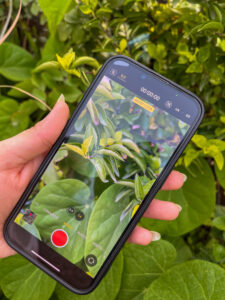
- Manually Adjust Exposure: Press and drag the exposure compensation up or down on the screen.
- To lock focus and exposure, double-tap or press halfway on your subject until the AE/AF Lock icon is displayed.
Post-Processing Techniques:
- In this approach, you must use the Photos app to alter the focus points after the recording.
- Apply noise reduction in third-party video editing apps
- Adjust contrast and color to enhance the mood of low-light scenes
Additional equipment recommendations:
- External LED Lights: Small, portable LED panels can improve lighting.
- Reflectors: Once used for the purpose of throwing available light on subjects.
- Stabilizers: There is no way to avoid shaking thoroughly in low light. However, gimbals or Steadicams can assist in that.
Alternatives to Cinematic Mode for Low Light
If Cinematic Mode isn’t producing satisfactory results in low light, consider these alternatives.
Standard video mode with manual controls:
- Next, with the naked eye, make sure to access the Camera app, and once there, swipe to the Video mode.
- Slide the arrow on the top of the screen to expand the control panel Further.
- This is why it is recommendable to switch off the auto-focus and adjust the lens focus, ISO, and other settings by hand, especially in low-light conditions.
Night Mode (for photos): Unfortunately, it is impossible to use the Night mode for videos, but it can take great low-light still photos for iPhone models that support this feature.
Third-party apps for low-light video: There are many applications today, like FiLMiC Pro and ProCam, which have features that can help in low light, such as manual controls. However, Cinematic Mode will be less effective than these in achieving a deep ‘depth of field.’
How can I improve my Video Recording Skills on the iPhone?
Here are practical techniques to improve your iPhone video quality regardless of which model you own.
Understanding Your iPhone’s Camera
Providing general information about the iPhone’s camera is essential before moving on to more sophisticated techniques. Recording videos can also be done through the Camera app, provided these features are embedded. Discover the essential but rich streaming qualities, including 720p-4K video resolutions and 24/30/60 fps frame rates.
Moreover, the newer iPhone models also come with HDR Video support when shooting videos, and it’s a great feature that grants better dynamic range to videos.
Composition Techniques
The composition of a video is a crucial factor in creating a well aesthetically appealing video. The rule of thirds is another simple and significant concept in photography and video production. You should picture your frame as a 3×3 grid, and if you’re aligning essential elements, it’s best to place them on these lines or at their cross-sections. This way, one gets a more balanced and exciting composition of the elements in the piece of art.
Another is what is known as leading lines. Try to find the natural leads in the environment (roads, buildings, or landscape), drawing the viewer’s attention through the frame. At times, the objects within the foreground can help in framing your subject and, therefore, injecting depth into your shots.
Feel free to change the angles and the point of view chosen. One option is to use a low-angle shot, which makes subjects look larger and more powerful, while a high-angle shot gives a bird’ s-eye view of scenes. Just by switching sides of the camera, the tone and message of this video can be transformed.
Lighting
Lighting is the biggest determiner of the quality of your videos. If natural light is available, it’s generally excellent and flattering. ‘Golden hour’ is the one hour after sunrise and before sunset, and in conditions like this, the light is warm, soft, and perfect for outside shoots. The blue period, or the time just before the sun rises or after the sun sets, is more relaxed and less noticeable.
When shooting at home, ensure your subject has their back to a window for natural lighting. Do not backlight unless you wish to have a shadow-like appearance of the subject. If there is inadequate natural light, acquiring portable LED lights for smartphones is recommended.
Audio Quality
However, do not degrade the quality of audio, which is also an arm of visual communication. The microphone already incorporated into the iPhone is adequate but has drawbacks; the sound quality weakens considerably when the speaker is either in a noisy environment or out of reach. Especially for speech, try to use an external mic, which can be connected directly via lightning or Bluetooth.
When recording, be aware of the places and people around you since they can influence your recording. Select environments that are as quiet as possible, and when recording outside the house, it is good to use some wind protector. During post-production processes, there are different applications for eliminating background noise while augmenting the voice.
Stability and Movement
Hence, shaking considerably contributes to spoiling an otherwise beautiful video. Hold your iPhone with two hands and keep your elbows close to your sides for stability. A small tripod is ideal for static shots. For the camera movements, it is a good idea to use a gimbal which employs motors to counterbalance the phone for smooth motion.
Subsequently, while transitioning to a new view, move the camera smoothly by panning it in the horizontal direction and tilting it vertically. Make sure that any two movements on a subject start from a static shot and end on a static shot to give the video a more professional look. If using a tracking shot (shooting a subject as it moves), try to stay at an appropriate distance from your subject and follow them slowly.
Editing on iPhone
There is also a basic in-house video editor in the iPhone that can enable users to crop, rotate or enhance the color and join short videos. Many third-party apps can be helpful for more advanced editing; they include iMovie, LumaFusion, or Adobe Premiere Rush.
Discover simple aspects such as cutting on the action and following a subject’s movement from one shot to another, establishing shots, and shooting length to achieve the desired tempo. Of course, good editing turns your raw material into a good story, so do not underestimate this step.
Advanced Tips and Tricks
After you gain confidence in basic moves, try out the unique options that are available in the application you are using. A post might show how a garden or room was changed over a few days or months with the help of a time-lapse video where hours of footage are condensed to seconds. Slow motion adds drama to fast-flow objects or brings out things people usually cannot see. There is much information from other cinematographers and filmmakers who write iPhone video tutorials and tips, so read them.
Is Cinematic Mode Available on Older iPhones?
Cinematic Mode is a new usability introduced in the iPhone 13 series launched in September 2021; it enables a user to record a video with a bokeh depth field and easily switch focus between subjects. This adds a professional touch at the end of the final videos and is close to the equivalent of having a Hollywood touch.
Cinematic Mode starts with the iPhone 13 series. It’s currently limited to these models:
- iPhone 13 Series: iPhone 13, iPhone 13 Mini, iPhone 13 Pro, iPhone 13 Pro Max
- iPhone 14 Series: iPhone 14, iPhone 14 Plus, iPhone 14 Pro, iPhone 14 Pro Max
- iPhone 15 Series: iPhone 15, iPhone 15 Plus, iPhone 15 Pro, iPhone 15 Pro Max
- iPhone 16 Series: iPhone 16, iPhone 16 Plus, iPhone 16 Pro, iPhone 16 Pro Max
- iPhone 17 Series: iPhone 17, iPhone 17 Pro, iPhone 17 Pro Max
- iPhone 18 Series: iPhone 18 Pro, iPhone 18 Pro Max
- Foldable: iPhone Duo (available from October 23, 2026)
Note: iPhone 16e, iPhone 17e and iPhone Air do not support Cinematic Mode.
Cinematic Mode is hardware-intensive. It launched on the iPhone 13 series, and Apple’s supported-model list starts there.
How can I maximize my iPhone’s Video Capabilities Without Cinematic Mode?
Cinematic Mode is excellent, but there are other ways to make great videos with your iPhone. Here are some cinematic mode tips and techniques to help you maximize your device’s video capabilities:
Explore built-in Camera app features:
- Portrait Mode: While mainly a photo feature, you can also record short videos with Portrait mode for that blending background blur look.
- Time-Lapse and Slo-Mo: In general, these can be used to add variety and interest to videos.
- Grid Overlay: Turn on the grid that you can adjust in the camera settings to assist in adducing the rule of third proportions.
Shooting techniques for professional-looking videos:
- Stabilization: To avoid that, use both hands to hold your iPhone steady, or you can consider getting a small tripod or a gimbal.
- Lighting: Consider the opportunities for natural light to avoid including backlight in your picture.
- Framing: Always take more than one picture from an angle and at different views, to make it look appealing.
- Focus and Exposure: Place your finger on the subject to lock focus and lock exposure before shooting a video.
Editing tools in the Photos App:
- Trim and Crop: They crop their footage, meaning they remove unnecessary parts or framing during the reception of footage.
- Filters: Make use of the default filters to lift the spirits of the videos.
- Adjustments: Tweak values such as brightness, contrast, and saturation, among others, to enhance the general appearance.
If you understand these integrated features and methods, you can improve the quality of the recorded iPhone videos regardless of whether the Cinematic Mode is available.
Want to go further? See our guide on how to use iPhone spatial video and how to shoot iPhone spatial video.
Are there any third-party apps that offer similar effects to Cinematic Mode?
Although no third-party app can mimic Cinematic Mode with real-time processing, there are many comparable apps for iPhone videography with additional integrated features.
Here are three popular options:
FiLMiC Pro: The application is FiLMiC Pro, which is most suited to performing professional video recording along with many options and settings. While it doesn’t provide automatic focus shifting like Cinematic Mode, it does offer:
- Some attractions of the cameras include Manual focus control with focus peaking.
- Depth of Field simulation through what is called a “Lens.”
- Advanced color grading tools
- Compatibility with lenses and gimbals
Focos Live: Focos Live has always had functionality for changing the depth of field on pictures, but it also has video features that can somewhat parrot what Cinematic Mode can do.
- The ability to change the depth of field in real-time while shooting involves the moving live preview.
- Post-recording focus adjustment
- Different bokeh looks and filters.
- 3D lighting adjustments
ProCam 8: Another indisputable example of a feature-rich camera application is ProCam 8, which provides as many manual modes for photo and video shooting. While it doesn’t offer automatic focus transitions, it does provide:
- Manual focus control with focus peaking
- Depth-of-field preview
- RAW video recording is available on some devices or other video shooting options.
- Advanced video editing tools
Although these apps are not Cinematic Mode apps themselves, they provide solid tools to shoot in the same cinematic manner with a pinch of effort and imagination.
However, it should also be noted that while these third-party applications can yield stunning results, they generally take even a beginning user longer to recognize than Apple’s easy-to-use Cinematic Mode. However, gaining better control over these apps helps you fine-tune your videos and make them more professional-looking.
Conclusion
Some newer iPhones come with Cinematic Mode, which is not compulsory for filming fabulous clips. That is why you can get a high-quality video on any iPhone model with built-in camera tools, proper settings, and iOS applications.
Understand that good videography does not depend on the tutor’s attributes but rather on creativity and the direction of the videography. Do not let the absence of Cinematic Mode get in the way. Instead, focus on:
- Practicing regularly
- Experimenting with different techniques
Whether you are just starting out or looking to push your iPhone video to a professional level, the guides on this site cover every step. Start with which iPhones support Cinematic Mode, then work through focus control, lighting, and color grading.
FAQs
What do you get with Cinematic Mode that you don’t with normal video mode?
- Cinematic Mode gives you automatic subject tracking, shallow depth of field blur, and the ability to change focus points after recording — none of which are available in regular video mode.
Are there situations where I am not able to use Cinematic Mode?
- Yes. Cinematic Mode works best in good lighting. In very dark environments the depth effect can produce soft or messy edges around your subject.
Where are the videos shot in Cinematic Mode stored, and how can they be edited?
- Cinematic Mode videos are saved to your Photos app like any other video. Open the clip, tap Edit, and you can adjust focus points and blur strength directly inside Photos. For advanced editing, use Final Cut Pro or DaVinci Resolve.
Is Cinematic Mode available on the older iPhones released before the iPhone 13 Series?
- No. Cinematic Mode starts with the iPhone 13 series. Older iPhones do not support it regardless of iOS version.
What else can I do with my iPhone for video that does not include Cinematic Mode?
- Use built-in slow motion, time-lapse, and Portrait video modes. Third-party apps like FiLMiC Pro also offer manual controls for older iPhones.
What are third-party applications that have a similar feature to the Cinematic Mode?
- Yes. FiLMiC Pro, Focos Live, and ProCam 8 all offer depth-of-field simulation and manual focus controls similar to Cinematic Mode.